How to Find Every Subscription You're Paying For
How to find subscriptions you're paying for: check Apple, Google Play, PayPal, Amazon, bank statements, email and your phone bill, step by step.
Key takeaways
- Subscriptions hide in at least six places: Apple, Google Play, PayPal, Amazon, your cards and your phone bill.
- Go back 12 months on your statements so you catch yearly renewals, not just monthly ones.
- Search your email for words like "receipt", "renewal" and "trial" to find services billed outside the app stores.
- Write every subscription into one list with its price, billing cycle and next charge date before you cancel anything.
To find every subscription you're paying for, check six places: your Apple ID subscriptions, Google Play, PayPal automatic payments, Amazon memberships, 12 months of bank and card statements, and your email inbox. Then glance at your phone bill and any accounts family members use with your card.
No single app or screen shows everything, because each service bills you through whichever door you came in. A Netflix plan you started on the website, an app you subscribed to on your iPhone and a cloud storage plan paid through PayPal all live in different places.
The whole sweep usually takes under an hour. Below is where to look, what to search for and how to turn the results into a list you can act on.
Why subscriptions are so easy to lose track of#
Subscriptions are designed to be forgotten. You sign up once, the payment goes through automatically, and nothing reminds you again until something goes wrong.
A few patterns make them especially slippery:
- Free trials that convert. You meant to cancel after seven days and didn't.
- Yearly renewals. A charge that hits once a year never shows up when you skim last month's statement.
- Small amounts. A $2.99 add-on doesn't stand out next to groceries and rent.
- Different payment methods. One service on your credit card, another on a debit card, a third through PayPal.
- Cryptic names. The charge on your statement may not match the name of the app you remember.
The fix is to look in every place a charge can come from, not only the obvious one.
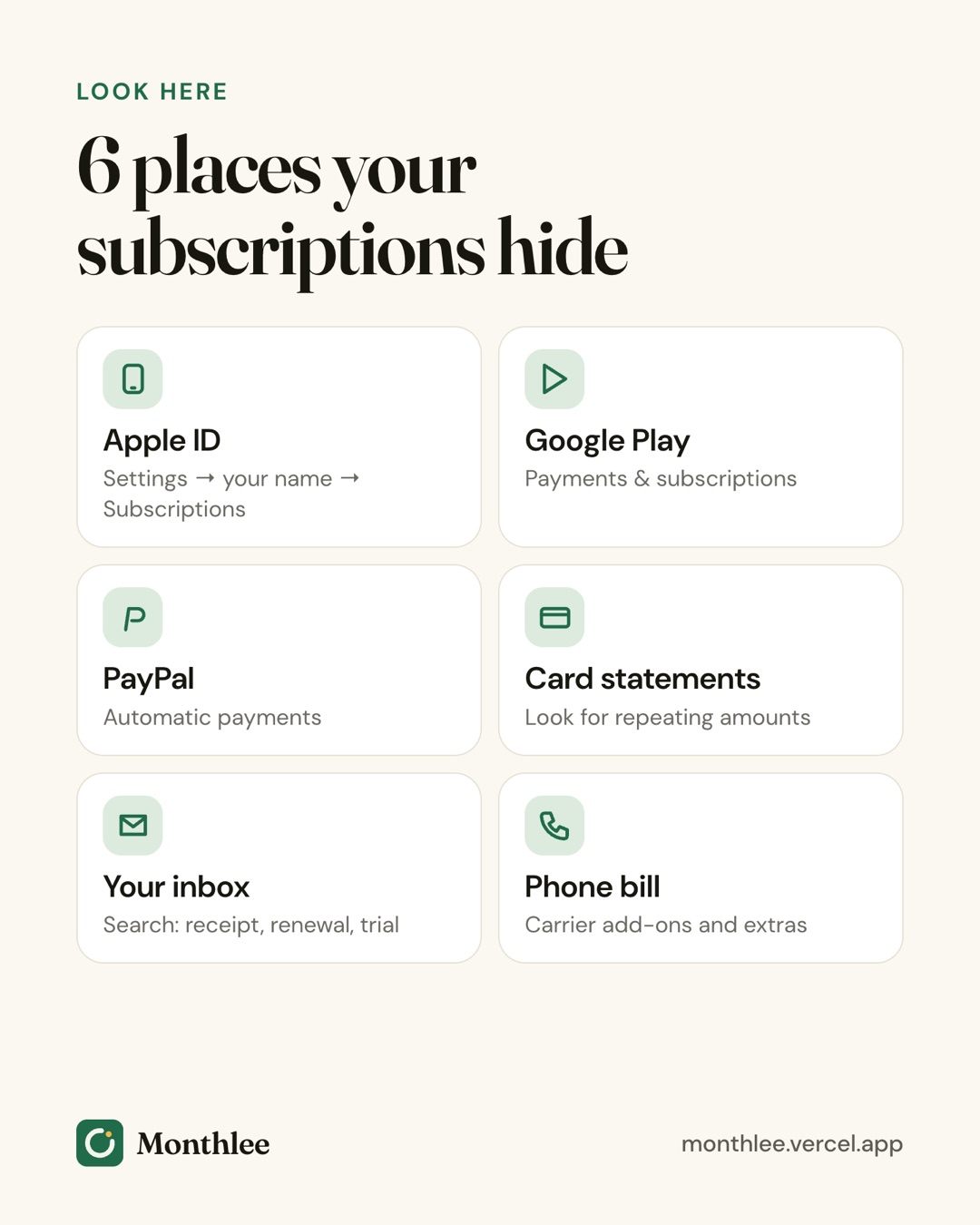
Where to look: a quick reference table#
Use this as your checklist. The details for each one follow below.
| Where to look | How to get there | What you'll find |
|---|---|---|
| Apple ID (iPhone/iPad) | Settings → [your name] → Subscriptions, or apps.apple.com/account/subscriptions | Apps and services billed by Apple, including Apple One and iCloud+ |
| Google Play (Android) | Play Store → profile picture → Payments & subscriptions → Subscriptions, or play.google.com/store/account/subscriptions | App and service subscriptions billed by Google |
| PayPal | Account settings → Payments → Manage automatic payments (on the website) | Merchants you've allowed to charge you automatically |
| Amazon | Account → Memberships & Subscriptions | Prime, channel add-ons, Kindle and Audible style memberships, Subscribe & Save |
| Bank and card statements | Your banking app or website, last 12 months | Everything charged directly to your cards |
| Email inbox | Search for "receipt", "renewal", "your subscription", "trial" | Website sign-ups and services billed outside the app stores |
| Phone carrier bill | Carrier app or online account, itemized bill | Add-ons, insurance, streaming bundles, third-party charges |
| Family members' devices | Their Apple ID, Google account or Family Sharing settings | Subscriptions charged to a shared card |
Menus change, so if a path looks different on your device, search the service's help page for "manage subscriptions".
Check your Apple ID subscriptions#
If you use an iPhone or iPad, start here. Anything you subscribed to inside an app on Apple devices is billed by Apple, even if the service also has its own website.
- Open Settings.
- Tap your name at the top.
- Tap Subscriptions.
- Look at both the Active and Inactive lists.
You can also see the same list in a browser at https://apps.apple.com/account/subscriptions after signing in.
The inactive list is useful too. It shows services you used to pay for, which jogs your memory about things you might have re-subscribed to elsewhere.
For a fuller picture, sign in at https://reportaproblem.apple.com. It shows your recent Apple purchases and renewals, which can surface one-off charges and renewals you didn't expect. If you find something you want to stop, see how to cancel subscriptions on iPhone.
Check Google Play subscriptions#
On Android, subscriptions bought through apps are billed by Google Play.
- Open the Play Store app.
- Tap your profile picture in the top corner.
- Tap Payments & subscriptions, then Subscriptions.
On a computer, go to https://play.google.com/store/account/subscriptions.
If you have more than one Google account on your phone, switch accounts from the profile menu and check each one. And remember that uninstalling an app does not cancel its subscription. Plenty of people discover they've been paying for an app they deleted months ago. Cancelling on Android and Google Play walks through the steps.
Check PayPal automatic payments#
PayPal is easy to overlook because the charge on your bank statement often just says PayPal, not the service behind it.
On the PayPal website, open your Settings, go to Payments, and find Manage automatic payments (it may also be labeled "pre-approved payments"). You'll see every merchant you've allowed to bill you automatically.
Some of these will be old and harmless, like a one-time store you never shopped at again. Others will be active subscriptions. Note the ones with recent charges and check each against your memory. Menus change, so search PayPal's help center for "automatic payments" if the path looks different.
Check Amazon memberships and subscriptions#
Amazon can hold several subscriptions at once, and they're spread across different parts of the site. On the website or app, go to Account, then Memberships & Subscriptions.
Look for:
- Your Prime membership and whether it renews monthly or yearly
- Video channel add-ons you subscribed to through Prime Video
- Reading, audiobook or music memberships
- Subscribe & Save deliveries, which are recurring purchases even if they're not "subscriptions" in the usual sense
Channel add-ons are a common surprise. You start a free trial for one show, and the add-on keeps billing long after you finished watching.
Go through 12 months of bank and card statements#
This is the most important step, because it catches everything the app stores miss: gyms, website sign-ups, software, meal kits, news sites and services billed straight to your card.
Why 12 months, not one#
A single month shows you monthly subscriptions. It completely misses yearly renewals, such as a domain name, antivirus software or an annual app plan. Going back a full year catches those too.
What recurring charges look like#
You're looking for patterns:
- The same amount on roughly the same date each month
- One charge on a similar date each year
- Small charges that repeat every week or every few weeks
- An amount that jumps slightly at some point, which usually means a price increase
If your bank lets you export transactions to a spreadsheet, sort by merchant name. Repeats jump out much faster that way.
Decoding cryptic merchant names#
Statement descriptions are often shortened or use a parent company's name. Common patterns look something like this:
- APPLE.COM/BILL: any subscription billed through your Apple ID. Check your Apple subscriptions list to see which one.
- GOOGLE *[name]: a Google Play purchase or a Google service.
- PAYPAL *[name]: a payment made through PayPal. The name after the asterisk is the merchant.
- AMZN or Amazon variations: Prime, digital purchases or a channel add-on.
- A company name you don't recognize at all: often the legal name of the business behind an app.
If a name means nothing to you, search it online together with the word "charge". If you still can't identify it, contact your bank or card issuer and ask them about it.
Don't forget every card you own#
Check every credit card, debit card and any card you rarely use. Old cards are where forgotten subscriptions tend to live, because you never look at them. Also check whether any card was replaced recently; many services carry on charging the new card automatically.
Search your email for receipts and renewals#
Your inbox is the best record of website sign-ups. Most services send a receipt for every charge and a notice before a renewal or trial ends.
Try these searches one at a time:
receiptrenewalorrenewsyour subscriptiontrialorfree trialmembershipauto-renewinvoicepayment confirmationbilling
In Gmail and most other email apps, you can narrow results by date. Something like receipt after:2025/10/01 limits results to the last year. Also check your promotions, updates and spam folders, since receipts often get filed there.
If you've used more than one email address over the years, search each one. An old address you rarely open can be attached to subscriptions you've forgotten.
Check your phone carrier bill#
Your mobile bill can contain more than your phone plan. Open your carrier's app or online account and look at the itemized bill.
Look for:
- Device insurance or protection plans
- Streaming or music bundles added to your plan
- Extra lines you no longer need
- International or roaming add-ons that never got removed
- Third-party charges, sometimes labeled "carrier billing" or "premium services", which can come from games, ringtone services or apps billed through your phone number
If you see a third-party charge you don't recognize, contact your carrier. Many carriers also let you block third-party billing on your line.
Check family members' accounts and shared cards#
If anyone else uses your card, their subscriptions are your subscriptions.
- Family Sharing on Apple: each family member's subscriptions are listed on their own device, under their own Apple ID. If they use your card, ask them to check.
- Google family groups: same idea; each person's subscriptions are on their account.
- Kids' accounts and game consoles: consoles and game stores often have their own subscription settings.
- Streaming profiles on smart TVs: sometimes a TV app was signed up for directly on the TV.
Sitting down together for 15 minutes is usually faster than guessing from statements. If you're sharing services, it may also be worth reading about how to share and split subscription costs with family so nobody is paying twice for the same thing.
Put everything in one list#
Finding your subscriptions is only half the job. Once you know what's there, write it all down in one place so you don't have to repeat this hunt every year.
For each subscription, note:
- Name of the service
- Price
- Billing cycle (weekly, monthly, yearly)
- Next charge date
- Where it's billed (Apple, Google Play, PayPal, a specific card)
- Whether you still want it
A quick worked example#
Say your sweep turns up three things you'd forgotten: a $4.99/month app on your Apple ID, a $9.99/month video add-on on Amazon and a $59.99/year photo app on an old credit card.
- $4.99 × 12 = $59.88 a year
- $9.99 × 12 = $119.88 a year
- $59.99 a year
Together that's $59.88 + $119.88 + $59.99 = $239.75 a year on things you didn't know you were paying for. That's the reason the search is worth an hour. To see the full picture across everything you pay for, read how much you're really spending on subscriptions.
Where to keep the list#
A spreadsheet or notes app works if you'll keep it up to date. If you'd rather have reminders before each charge, an app like Monthlee keeps subscriptions, bills and free trials in one list without connecting to your bank: you add each one yourself, popular services fill in their logo, price and cycle in a tap, and you get a reminder before each renewal.
Whichever you use, the list is what turns this from a one-off clean-up into something you control. From there, a 30-minute subscription audit helps you decide what to keep, downgrade or cancel.
The bottom line#
To find every subscription you're paying for, check your Apple ID or Google Play list, PayPal automatic payments, Amazon memberships, 12 months of card statements, your email and your phone bill, then ask anyone who shares your card.
Write every result into one list with its price, cycle and next charge date. Cancel what you don't use, set reminders for what you keep, and repeat the sweep once or twice a year so nothing slips back in.
Frequently asked questions
How do I see all my subscriptions in one place?
No single screen shows everything, because subscriptions are billed through different places. Check your Apple ID or Google Play subscriptions, PayPal automatic payments, Amazon memberships and 12 months of card statements, then copy what you find into one list or tracking app.
How do I find out what subscriptions are charging my debit card?
Download or open the last 12 months of statements for that card and look for charges that repeat at the same amount every month or year. Search for words like "bill", "subscription" or "membership", and look up any merchant name you don't recognize.
Why can't I see a subscription in my iPhone settings?
Settings only shows subscriptions billed through Apple. If you signed up on the service's website, through Google Play, PayPal or your phone carrier, it won't appear there. Also check that you're signed in with the right Apple ID, since family members and old accounts have separate lists.
Does deleting an app cancel the subscription?
No. Deleting or uninstalling an app does not cancel its subscription on iPhone or Android. You need to cancel it in your Apple ID or Google Play subscription settings, or on the service's website if you paid there.
Know every charge before it lands.
Monthlee keeps your subscriptions, bills and free trials in one calm list and reminds you before each charge. No bank login. Free for up to 5 subscriptions.
Download on theApp Store- Reminders 1, 2, 3 or 7 days before
- Free-trial warnings
- Monthly and yearly totals
- Cancel guides with direct links
Keep reading
 Guides
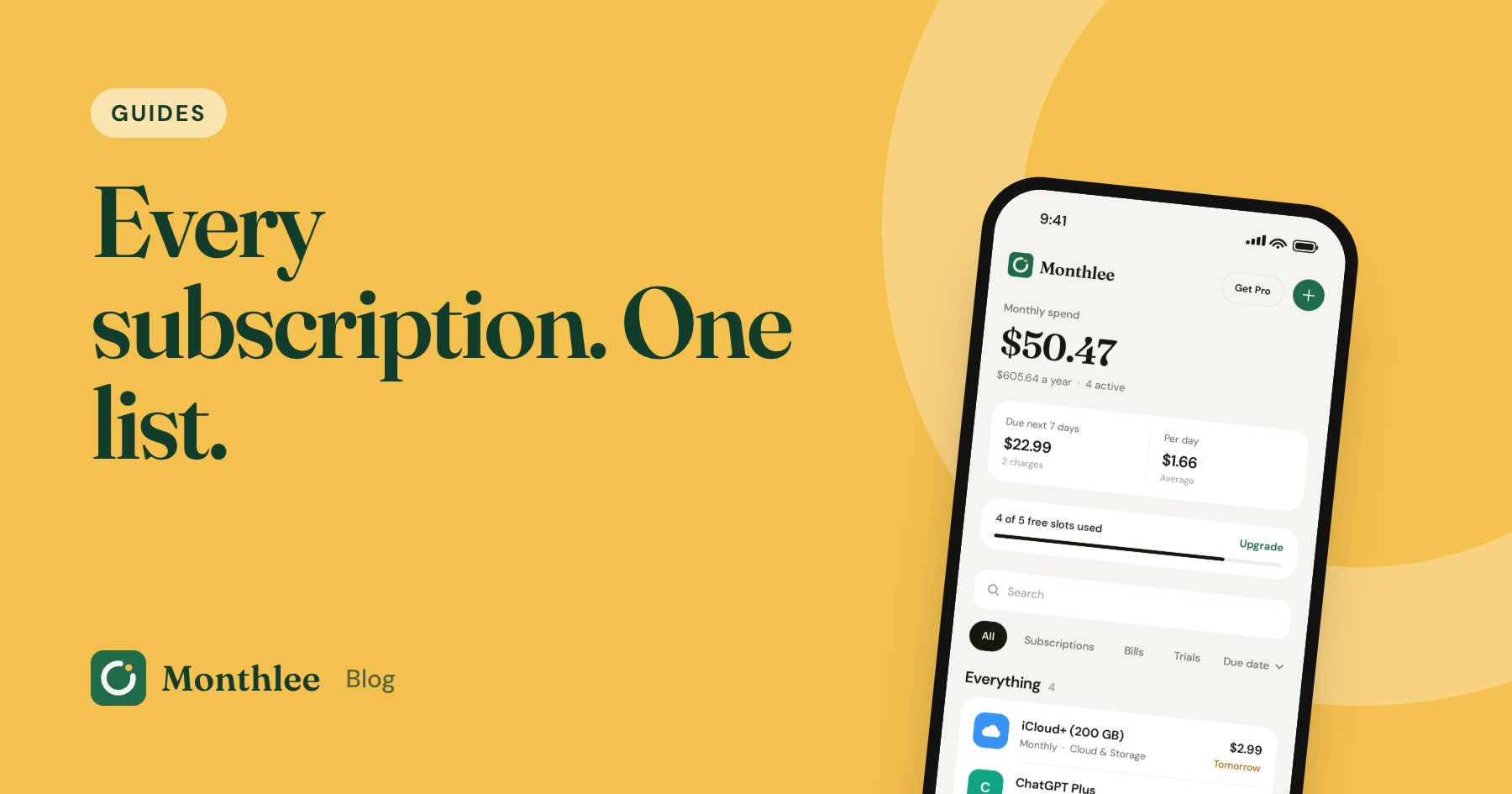
How to Track All Your Subscriptions in One Place
How to track subscriptions in one list: find every charge, pick a method, record the right details, set reminders and review it all in 10 minutes a month.
 Guides
How to Share Subscriptions With Apple Family Sharing
How family sharing subscriptions work on iPhone: set up a family group, share eligible subscriptions, who pays, Ask to Buy for kids, and how to stop sharing.
 Guides
Merging Subscriptions as a Couple Without the Awkwardness
A practical guide to couples subscriptions: list both sets, cancel duplicates, decide what's shared or personal, split costs fairly and plan for a breakup.