How to Track All Your Subscriptions in One Place
How to track subscriptions in one list: find every charge, pick a method, record the right details, set reminders and review it all in 10 minutes a month.
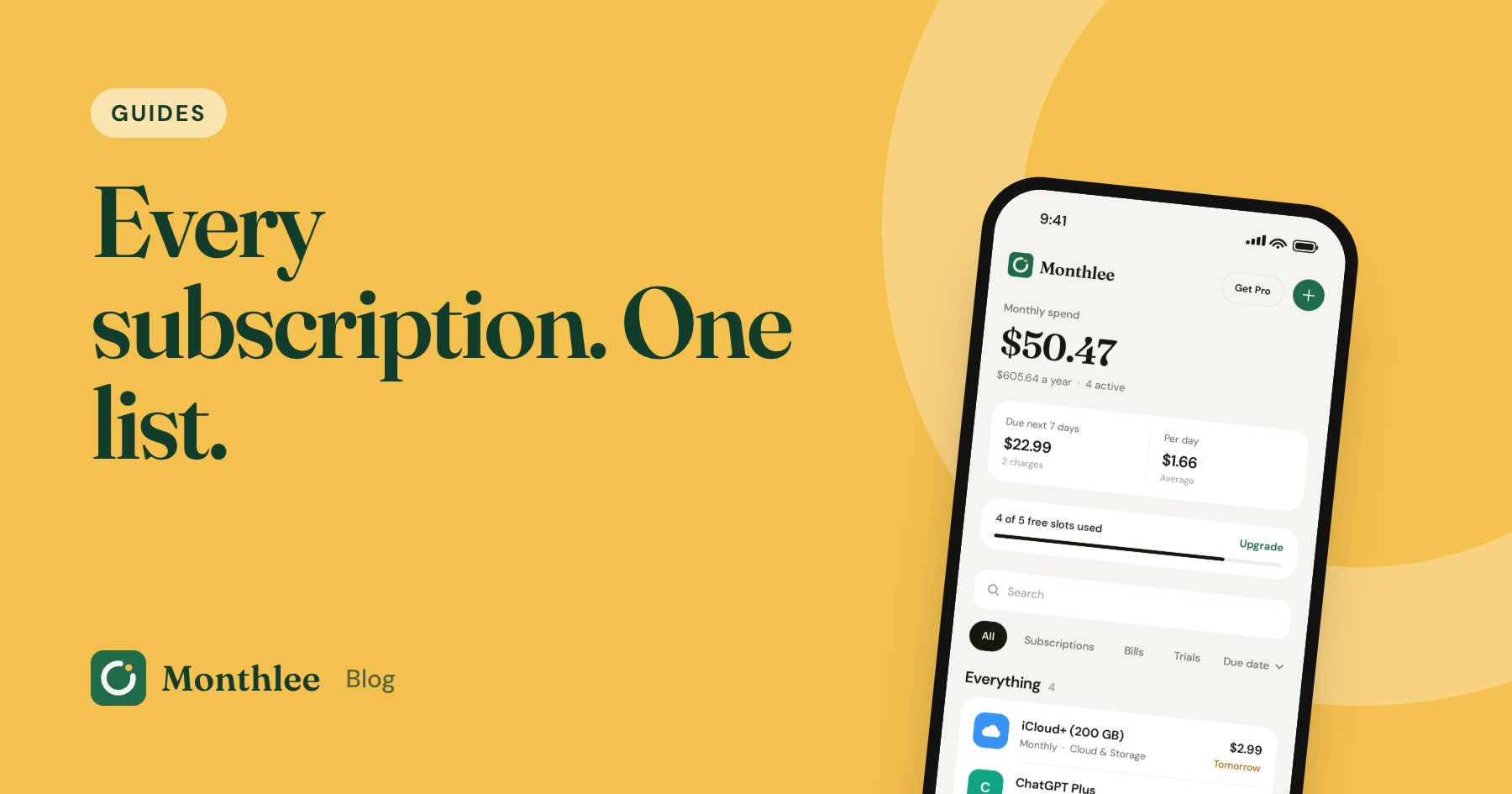
Key takeaways
- Start by finding every subscription: check your App Store and Google Play lists, bank and card statements, and your email inbox.
- Keep one list with the name, price, billing cycle, next charge date, payment method and how to cancel.
- Convert every price to a monthly and yearly cost so you can compare a $119 yearly plan with a $9.99 monthly one.
- Set a reminder a few days before each renewal, and earlier for free trials and yearly plans.
- Spend 10 minutes once a month reviewing the list and cancel anything you no longer use.
To track subscriptions, put every recurring charge in one list: the service, the price, how often it bills, the next charge date, the card it uses and how to cancel it. Then set a reminder a few days before each renewal and review the list once a month.
That's the whole system. The hard part isn't the list itself; it's finding everything that belongs on it and keeping the dates current. Below you'll find where subscriptions hide, three ways to track them with honest trade-offs, exactly what to record, and a 10-minute monthly habit that keeps the list accurate.
Why subscriptions slip out of sight#
Subscriptions are designed to be easy to start and easy to forget. You sign up once, enter a card, and the charges carry on quietly in the background.
A few things make them especially hard to keep an eye on:
- They're spread across many places. Some bill through the App Store, some through Google Play, some straight to your card, and some through PayPal or a phone carrier.
- The amounts are small. A $2.99 storage plan or a $6.99 app rarely stands out on a statement.
- The cycles don't line up. Monthly, yearly, weekly and quarterly plans renew on different days, so there's no single moment when you see them all.
- Free trials convert silently. A trial you started to try one feature becomes a paid plan unless you cancel in time.
- Names on statements are vague. A charge can show up as "APPLE.COM/BILL" or a parent company name you don't recognize.
None of this means you're careless. It means you need a system that doesn't depend on remembering.
Step 1: Find every subscription you're paying for#
You can't track what you haven't found. Set aside 20 to 30 minutes and go through these sources one at a time. For a deeper walkthrough, see how to find hidden subscriptions.
| Where to look | What you'll find | How to check |
|---|---|---|
| Apple subscriptions | Apps and services billed through your Apple ID | Settings → [your name] → Subscriptions |
| Google Play | Android apps and services billed through Google | Play Store → profile picture → Payments & subscriptions → Subscriptions |
| Bank and card statements | Anything billed directly to your card | Scan the last 2 to 3 months, plus 12 months for yearly charges |
| PayPal or other wallets | Services set up as automatic payments | Look in the wallet's settings for automatic or pre-approved payments |
| Email inbox | Receipts, renewal notices, trial confirmations | Search for "receipt", "renewal", "subscription", "trial" and "your plan" |
| Phone or internet bill | Add-ons charged through your carrier | Read the itemized bill for extras |
Two tips make this faster. First, go back a full year on your card statements so you catch yearly charges like a domain name, a cloud backup plan or an antivirus license. Second, write down anything you don't recognize and look it up later rather than stopping to investigate each one.
Step 2: Choose a tracking method#
There are three common ways to keep the list. All of them work if you actually use them, so pick the one you'll keep up.
Notes app or spreadsheet#
A note on your phone is the quickest start: one line per subscription with the price and renewal date. A spreadsheet adds columns, totals and sorting. If you like formulas, a subscription tracker spreadsheet can calculate monthly and yearly costs for you.
The weakness is that neither one reminds you of anything. You have to open it, and the next charge dates go stale unless you update them after every renewal.
Calendar reminders#
Adding each renewal to your calendar as a repeating event with an alert means your phone tells you before a charge. It's free and already on your phone.
The weakness is that a calendar is a poor overview. You can't easily see your total spend, compare plans or tell at a glance what you're paying for. Changing a price or billing date means editing the event, and old events pile up.
A dedicated tracker app#
A subscription tracker app combines the list and the reminders. You add each service once, and the app works out totals, sorts by next charge and sends alerts. Some connect to your bank and some, like Monthlee, work without any bank login, so you add subscriptions yourself (popular services are one tap) and get reminders before each charge.
The weakness is that it's another app to set up, and the best features may be on a paid plan.
Comparing the three methods#
| Notes or spreadsheet | Calendar reminders | Tracker app | |
|---|---|---|---|
| Cost | Free | Free | Free plan or small fee |
| Setup time | 15 to 30 minutes | 20 to 40 minutes | 10 to 20 minutes |
| Reminders before charges | No | Yes | Yes |
| Monthly and yearly totals | Only with formulas | No | Yes, automatic |
| Free trial handling | Manual | Manual event | Usually built in |
| Easy to see everything at once | Yes | No | Yes |
| Upkeep | Update dates by hand | Edit events by hand | Dates roll forward automatically |
If you have fewer than five subscriptions and like simple tools, a note plus calendar alerts is fine. Once you're past five or six, or you share subscriptions with family, a spreadsheet or app saves time.
Step 3: Record the right details for each subscription#
Whatever method you choose, capture the same fields. Each one answers a question you'll have later.
- Name of the service. Use the name you'd recognize, and note the statement name if it's different.
- Price and currency. Record what you actually pay, including tax if it's added.
- Billing cycle. Weekly, monthly, quarterly or yearly.
- Next charge date. The single most useful field, because it drives your reminders.
- Payment method. Which card, PayPal, Apple or Google. This tells you where to cancel.
- Category. Streaming, music, software, fitness, news, utilities. Useful for spotting overlaps.
- How to cancel. A link to the cancel page, or "Apple" if it's billed through your Apple ID.
- Free trial end date. If it's a trial, note when it converts and what it will cost.
- Notes. Who uses it, whether it's shared, or why you signed up.
The payment method field matters more than it seems. Subscriptions bought through Apple must be cancelled through Apple, even if the service also has its own website. Knowing where each one is billed saves you a frustrating search later.
Convert everything to monthly and yearly cost#
Prices on different cycles are hard to compare. Turn each one into a monthly and yearly figure:
- Monthly plan: yearly cost = price × 12
- Yearly plan: monthly cost = price ÷ 12
- Weekly plan: monthly cost = price × 52 ÷ 12
Here's a worked example with typical plan prices (yours will differ):
| Subscription | Price | Monthly cost | Yearly cost |
|---|---|---|---|
| Streaming service | $15.49/month | $15.49 | $185.88 |
| Music | $11.99/month | $11.99 | $143.88 |
| iCloud+ storage | $2.99/month | $2.99 | $35.88 |
| Gym | $40.00/month | $40.00 | $480.00 |
| ChatGPT Plus | $20.00/month | $20.00 | $240.00 |
| Shopping membership | $139.00/year | $11.58 | $139.00 |
| Total | $102.05 | $1,224.64 |
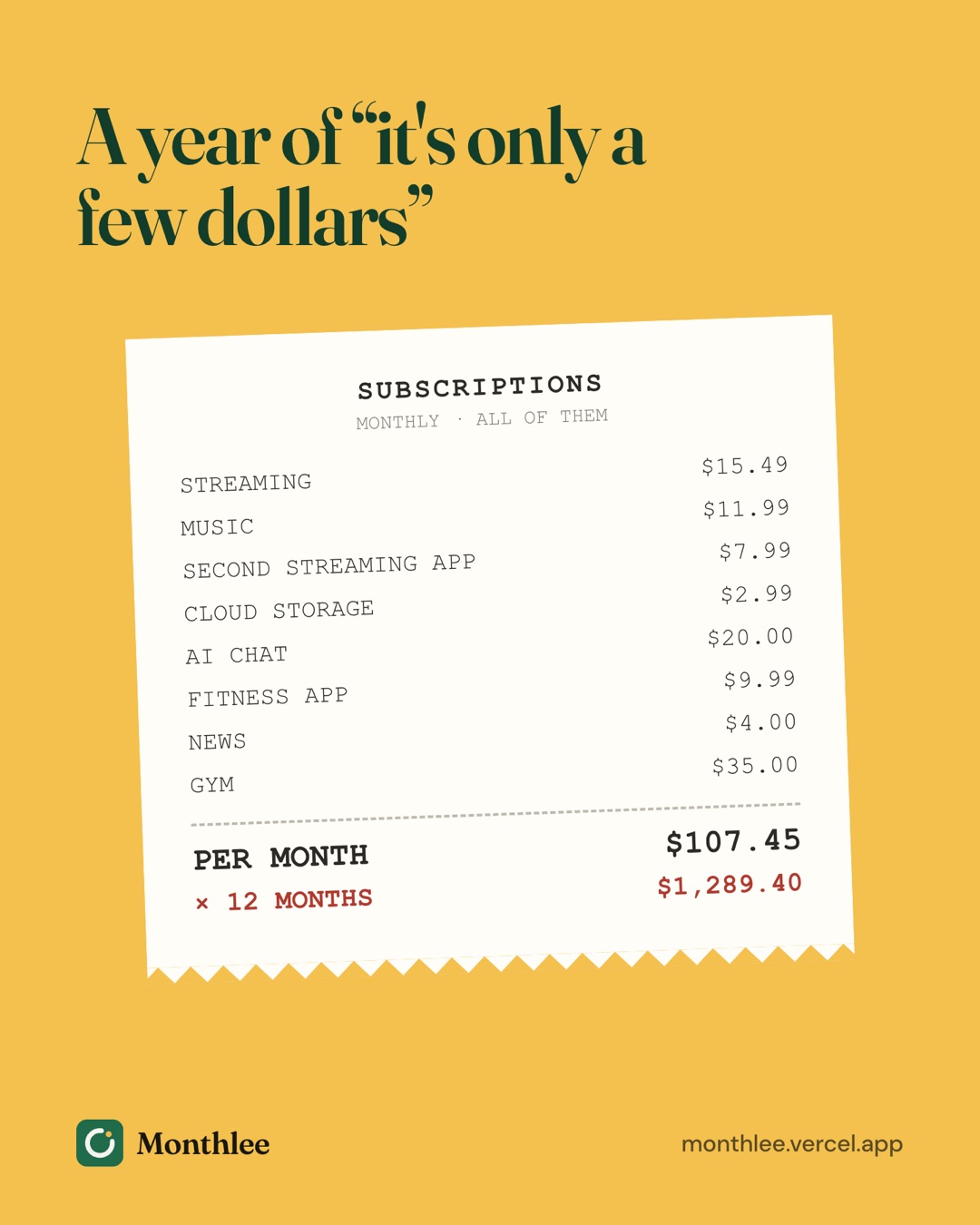
The streaming plan alone is $15.49 × 12 = $185.88 a year. The yearly membership works out to $139 ÷ 12 = $11.58 a month. Add it all up and six ordinary subscriptions cost about $102 a month, or over $1,200 a year. (The yearly column adds to $1,224.64 rather than $102.05 × 12 = $1,224.60 because of rounding in the monthly figure.)
Seeing the yearly number is usually what prompts people to cut.
Step 4: Set reminders before every renewal#
A list tells you what you pay. Reminders tell you when to act. Set an alert a few days before each charge so you have time to decide whether to keep it.
Good starting points:
- Monthly subscriptions: 1 to 3 days before.
- Yearly subscriptions: 7 days before, because the charge is larger and you may need time to compare options.
- Free trials: 2 to 3 days before the trial ends. For Apple subscriptions, cancel at least 24 hours before the trial ends to avoid the charge.
You can set these as calendar events, in the Reminders app, or in a tracker app. For a full comparison of the options and lead times, read how to get reminded before every subscription renews.
Pick a time of day when you can act on the reminder. An alert at 9 p.m. on the couch is more useful than one at 7 a.m. on your commute.
Step 5: Build a 10-minute monthly review habit#
The list only stays useful if it stays accurate. Put a recurring 10-minute slot in your calendar, for example the first Sunday of each month, and run through this:
- Check what renews in the next 30 days. Sort by next charge date and look at the top of the list.
- Ask one question per subscription: "Did I use this last month?" If the honest answer is no, mark it for cancellation.
- Look for overlaps. Two music services, two cloud storage plans, or several AI chat tools often do the same job.
- Compare against your statement. Glance at last month's card charges and make sure every recurring one is on your list, and that the amounts match.
- Update dates and prices. Roll forward any next charge dates that have passed, and update any price that changed.
- Add anything new. Trials you started, apps you bought, a new bill.
Once or twice a year, go deeper with a full subscription audit, including a 12-month look back at your statements for yearly charges.
Ten minutes a month is two hours a year. If that review catches a single forgotten $15.49 monthly plan, it's saved $185.88.
Step 6: Cut what you don't use#
Tracking is only half the point. The other half is acting on what you see.
Decide what to cancel#
Sort your list by yearly cost, highest first, and work down. For each one, ask:
- Did I use it in the last 30 days?
- Is there a free or cheaper alternative I already have?
- Would I sign up again today at this price?
- Could I pause it, or switch to a cheaper tier?
Anything with two "no" answers is a strong candidate. Streaming services are good to rotate: keep one at a time, cancel, and pick it up again when there's something you want to watch.
Cancel in the right place#
Where you cancel depends on how you pay:
- Apple (iPhone or iPad): Settings → [your name] → Subscriptions → pick the subscription → Cancel Subscription. You can also go to apps.apple.com/account/subscriptions. Access continues until the end of the period you've paid for. Step-by-step help is in how to cancel subscriptions on iPhone.
- Google Play: Play Store app → profile picture → Payments & subscriptions → Subscriptions → pick one → Cancel subscription. Uninstalling an app does not cancel its subscription.
- Billed directly to your card: open your account page on the service's website, find Membership or Billing, and choose Cancel. Menus change, so check the service's help page if yours looks different.
After cancelling, keep the confirmation email and watch your next statement to make sure the charge stops. If a charge continues after you've cancelled, contact the service first, and if that doesn't work, contact your bank or card issuer.
Record the savings#
When you cancel something, note the yearly amount you're no longer paying. It's motivating to see the total grow, and it helps you resist signing back up on impulse. Some tracker apps, including Monthlee, keep a running savings total when you mark a subscription as cancelled.
Common mistakes when tracking subscriptions#
A few habits trip people up even after they've built a list:
- Forgetting yearly charges. They only appear once a year, so they're easy to miss when you scan recent statements. Always look back 12 months.
- Not updating the next charge date. A list with dates from three months ago can't remind you of anything.
- Ignoring small charges. Five $3 subscriptions are $15 a month and $180 a year.
- Tracking only what's on your phone. Gyms, newspapers, meal kits, software licenses and phone add-ons often bill directly to your card.
- Cancelling by deleting the app. Removing an app doesn't stop the subscription. You have to cancel it in your Apple ID, Google Play account or on the service's website.
- Losing track of shared plans. If you pay for a family plan, note who's on it and whether anyone reimburses you.
The bottom line#
Tracking subscriptions comes down to one accurate list and a nudge before each charge. Start today by finding every subscription in your App Store or Google Play list, your card statements and your inbox. Put them in one place with the price, cycle, next charge date and how to cancel.
Choose the method you'll actually keep up: a note and calendar alerts for a short list, a spreadsheet if you like formulas, or a tracker app if you want totals and reminders handled for you. Then block 10 minutes a month to review what's renewing and cancel anything you no longer use.
Frequently asked questions
What is the easiest way to keep track of subscriptions?
Keep a single list of every subscription with its price, billing cycle and next charge date, and set a reminder before each renewal. A notes app works for a handful of services; a spreadsheet or a dedicated tracker app is easier once you have more than five or six.
How do I see all my subscriptions on my iPhone?
Open Settings, tap your name, then tap Subscriptions. You'll see active and expired subscriptions billed through Apple. Services you pay for directly on a website, such as a gym or a streaming service billed to your card, won't appear there, so check your card statements too.
How often should I review my subscriptions?
A short review once a month is enough for most people. Look at what renews in the next 30 days, ask whether you still use each one, and cancel anything you don't. Do a deeper audit once or twice a year.
Can my bank show me all my subscriptions?
Your statements show recurring charges, and some banking apps group them, but they can miss services billed through Apple or Google under a generic name, and they don't track free trials you haven't been charged for yet. Use statements to find subscriptions, then keep your own list.
Know every charge before it lands.
Monthlee keeps your subscriptions, bills and free trials in one calm list and reminds you before each charge. No bank login. Free for up to 5 subscriptions.
Download on theApp Store- Reminders 1, 2, 3 or 7 days before
- Free-trial warnings
- Monthly and yearly totals
- Cancel guides with direct links
Keep reading
 Guides
How to Share Subscriptions With Apple Family Sharing
How family sharing subscriptions work on iPhone: set up a family group, share eligible subscriptions, who pays, Ask to Buy for kids, and how to stop sharing.
 Guides
Merging Subscriptions as a Couple Without the Awkwardness
A practical guide to couples subscriptions: list both sets, cancel duplicates, decide what's shared or personal, split costs fairly and plan for a breakup.
 Guides
Subscription Card Expired? What Happens to Your Plans
Subscription card expired or replaced? See why some charges continue, what happens when a payment fails, and how to update Apple, Google Play and PayPal.